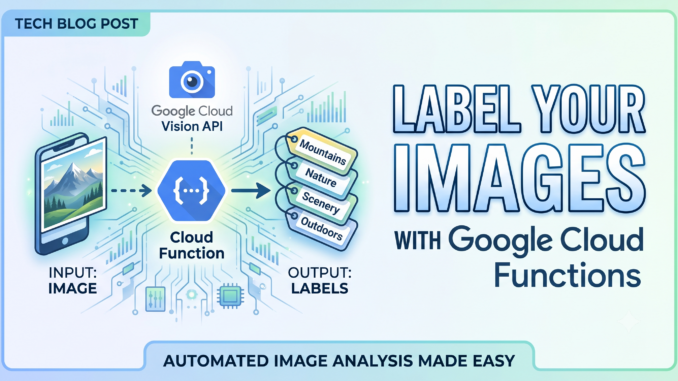
What you’ll build: Upload a photo to cloud storage, and within seconds a serverless function analyses it with AI and saves a list of everything it detected — all without managing any servers.
Key concepts
Before we write a single command, let’s make sure the big ideas are clear. Don’t worry if some of this feels abstract — everything will make sense once you see it in action.
Cloud Storage bucket
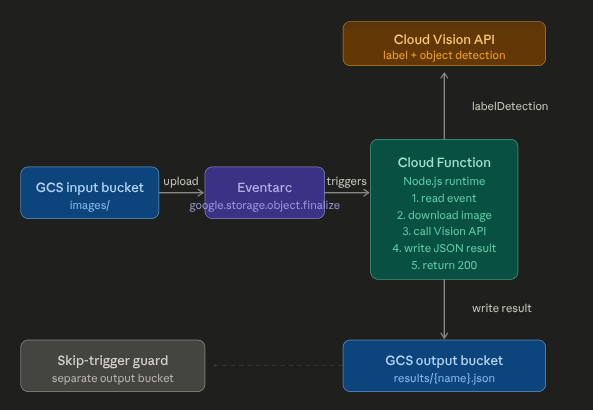
Think of a bucket as a folder that lives on the internet instead of your laptop. You can put files into it and retrieve them from anywhere. In this tutorial we use two buckets: one where you drop your images in, and one where the results come out.
Cloud Function
A Cloud Function is a small piece of code that runs only when something happens — like a file being uploaded. You don’t rent a server and keep it running 24/7; Google runs your code on demand and you pay only for the seconds it actually executes. This pattern is called serverless.
Event trigger
An event trigger is the “something happens” part. We configure Google Cloud to watch our input bucket and automatically call our function the moment a new image lands there. The trigger we use is called object.finalize — it fires when a file upload is fully complete.
Eventarc
Eventarc is the Google Cloud service that routes events (like “a file was uploaded”) to the right destination (our Cloud Function). Think of it as a smart postman that delivers notifications between services.
Vision API
Google’s Cloud Vision API is a pre-trained AI that can look at any image and return a list of labels — objects, scenes, and concepts it recognises, each with a confidence score between 0 and 1. We don’t train any model ourselves; we just send it a photo and read the results.
HTTP function
Alongside our upload-triggered function, we deploy a second function with an HTTP trigger. This one works like a tiny web server — you call a URL with a filename, and it returns the saved results as JSON. This is how other apps (or your browser) can query the output.
JSON
JSON (JavaScript Object Notation) is the format we use to store and return results. It’s plain text that looks like this:
{ "label": "Street", "score": 0.981 }
It’s human-readable and understood by virtually every programming language.
Cloud Shell / Cloud CLI
Cloud Shell is a free terminal built into the Google Cloud Console — just click the >_ icon in the top-right corner of the console. It already has the gcloud command-line tool installed, so there’s nothing to set up on your own machine. Every command in this tutorial runs inside Cloud Shell.
Architecture overview
Prerequisites
- A Google account
- A Google Cloud project with billing enabled (you can use the free tier)
- Nothing installed locally — we run everything from Cloud Shell
Step 1 — Open Cloud Shell
- Go to console.cloud.google.com
- Click the Activate Cloud Shell button (
>_) in the top-right toolbar - A terminal panel will open at the bottom of your screen
Set your project so every command targets the right place:
gcloud config set project YOUR_PROJECT_ID
Tip: Replace
YOUR_PROJECT_IDwith the ID shown in the top-left of the console (e.g.my-project-123456). The ID is different from the display name.
Step 2 — Enable the required APIs
Google Cloud services are opt-in. Run this once to switch on everything we need:
gcloud services enable \
  cloudfunctions.googleapis.com \
  cloudbuild.googleapis.com \
  eventarc.googleapis.com \
  vision.googleapis.com \
  storage.googleapis.com \
  run.googleapis.com
This takes about a minute. You’ll see Operation finished successfully when it’s done.
Step 3 — Create the storage buckets
We need two buckets: one for incoming images, one for outgoing results. Bucket names must be globally unique, so we prefix them with the project ID.
PROJECT_ID=$(gcloud config get-value project)

gcloud storage buckets create gs://${PROJECT_ID}-vision-images  --location=us-central1
gcloud storage buckets create gs://${PROJECT_ID}-vision-results --location=us-central1
Why two buckets? If we wrote results back into the same bucket as images, the new JSON file would trigger the function again — creating an infinite loop. Separate buckets prevent this cleanly.
Step 4 — Write the function code
Cloud Shell has a built-in file editor. Let’s create a folder and write our code:
mkdir vision-pipeline && cd vision-pipeline
Create package.json:
cat > package.json << 'EOF'
{
  "name": "vision-pipeline",
  "version": "1.0.0",
  "main": "index.js",
  "dependencies": {
    "@google-cloud/functions-framework": "^3.0.0",
    "@google-cloud/vision": "^4.0.0",
    "@google-cloud/storage": "^7.0.0"
  }
}
EOF
Create index.js:
cat > index.js << 'EOF'
const functions = require('@google-cloud/functions-framework');
const vision    = require('@google-cloud/vision');
const { Storage } = require('@google-cloud/storage');

const visionClient = new vision.ImageAnnotatorClient();
const storage      = new Storage();
const OUTPUT_BUCKET = process.env.OUTPUT_BUCKET;

// ── Triggered automatically when an image is uploaded ──────────────────────

functions.cloudEvent('processImage', async (cloudEvent) => {
  const { bucket, name: fileName } = cloudEvent.data;

  // Ignore any file that isn't an image
  if (!/\.(jpe?g|png|gif|bmp|webp|tiff?)$/i.test(fileName)) {
    console.log(`Skipping non-image file: ${fileName}`);
    return;
  }

  const gcsUri = `gs://${bucket}/${fileName}`;
  console.log(`Processing: ${gcsUri}`);

  // Ask Vision API to detect labels in the image
  const [result] = await visionClient.labelDetection(gcsUri);
  const labels = result.labelAnnotations.map((label) => ({
    description: label.description,
    score:       Math.round(label.score * 1000) / 1000,
    topicality:  Math.round(label.topicality * 1000) / 1000,
  }));

  // Build the result JSON
  const payload = JSON.stringify(
    { sourceImage: gcsUri, processedAt: new Date().toISOString(), labels },
    null, 2
  );

  // Save it to the output bucket: images/photo.jpg → results/photo.json
  const baseName   = fileName.replace(/\.[^.]+$/, '').replace(/^.*\//, '');
  const outputPath = `results/${baseName}.json`;

  await storage
    .bucket(OUTPUT_BUCKET)
    .file(outputPath)
    .save(payload, { contentType: 'application/json' });

  console.log(`Saved: gs://${OUTPUT_BUCKET}/${outputPath}`);
});

// ── HTTP endpoint: retrieve a result by image name ─────────────────────────

functions.http('getResult', async (req, res) => {
  if (req.method !== 'GET') {
    return res.status(405).json({ error: 'Method not allowed' });
  }

  const name = req.query.name;
  if (!name) {
    return res.status(400).json({ error: 'Missing query param: name' });
  }

  const baseName   = name.replace(/\.[^.]+$/, '');
  const outputPath = `results/${baseName}.json`;

  try {
    const file = storage.bucket(OUTPUT_BUCKET).file(outputPath);
    const [exists] = await file.exists();

    if (!exists) {
      return res.status(404).json({
        error: `Result not found: ${outputPath}`,
        hint:  'The image may still be processing, or the name is incorrect.',
      });
    }

    const [contents] = await file.download();
    return res.status(200).json(JSON.parse(contents.toString('utf8')));

  } catch (err) {
    console.error('getResult error:', err);
    return res.status(500).json({ error: 'Failed to retrieve result' });
  }
});
EOF
What just happened?
cat > filename << 'EOF' ... EOFis a shell trick that writes everything between the twoEOFmarkers into a file. It’s a convenient way to create files directly in the terminal.
Step 5 — Deploy the upload-triggered function
This deploys processImage, which will run every time an image lands in the input bucket:
PROJECT_ID=$(gcloud config get-value project)

gcloud functions deploy processImage \
  --gen2 \
  --runtime=nodejs20 \
  --region=us-central1 \
  --source=. \
  --entry-point=processImage \
  --trigger-event-filters="type=google.cloud.storage.object.v1.finalized" \
  --trigger-event-filters="bucket=${PROJECT_ID}-vision-images" \
  --trigger-location=us-central1 \
  --set-env-vars OUTPUT_BUCKET=${PROJECT_ID}-vision-results \
  --memory=256MB \
  --timeout=60s
Deployment takes 1–3 minutes. You’ll see a URL printed when it’s done — you don’t need it for this function, but it confirms the deploy succeeded.
What does
--gen2mean? Cloud Functions has two generations. Gen 2 is the modern version, built on Cloud Run under the hood — it’s faster, more configurable, and what Google recommends for new projects.
Step 6 — Grant permissions
The function needs permission to read from the input bucket, write to the output bucket, and call the Vision API. First, find the service account the function runs as:
SA=$(gcloud functions describe processImage \
  --gen2 --region=us-central1 \
  --format='value(serviceConfig.serviceAccountEmail)')

echo "Service account: $SA"
Now grant the three permissions:
# Read images from the input bucket
gcloud storage buckets add-iam-policy-binding gs://${PROJECT_ID}-vision-images \
  --member="serviceAccount:$SA" --role="roles/storage.objectViewer"

# Write results to the output bucket
gcloud storage buckets add-iam-policy-binding gs://${PROJECT_ID}-vision-results \
  --member="serviceAccount:$SA" --role="roles/storage.objectCreator"

# Call the Vision API
gcloud projects add-iam-policy-binding ${PROJECT_ID} \
  --member="serviceAccount:$SA" --role="roles/cloudvision.admin"
What is a service account? When a Cloud Function runs, it does so under an identity called a service account — like a user account for a program. We grant permissions to this identity rather than to a person.
Step 7 — Deploy the HTTP retrieval function
gcloud functions deploy getResult \
  --gen2 \
  --runtime=nodejs20 \
  --region=us-central1 \
  --source=. \
  --entry-point=getResult \
  --trigger-http \
  --allow-unauthenticated \
  --set-env-vars OUTPUT_BUCKET=${PROJECT_ID}-vision-results \
  --memory=256MB \
  --timeout=30s
Save the URL that’s printed at the end — you’ll need it in a moment:
RESULT_URL=$(gcloud functions describe getResult \
  --gen2 --region=us-central1 \
  --format='value(serviceConfig.uri)')

echo "Your retrieval URL: $RESULT_URL"
--allow-unauthenticatedmakes the URL publicly accessible — anyone with the URL can call it. For a production system you’d remove this flag and require callers to authenticate, but it’s fine for learning.
Step 8 — Test the pipeline
Upload any image from Cloud Shell. We’ll use a sample public image:
# Download a sample photo into Cloud Shell
curl -o sample.png "https://innovativeteams.net/wp-content/uploads/2023/09/ucf-design-code.png"

# Upload it to the input bucket
gcloud storage cp sample.png gs://${PROJECT_ID}-vision-images/sample.png
Wait about 10–15 seconds for the function to process it, then retrieve the result:
curl "${RESULT_URL}?name=sample"
You should see a response like:
{
  "sourceImage": "gs://my-project-vision-images/sample.jpg",
  "processedAt": "2026-06-28T10:23:01.000Z",
  "labels": [
    { "description": "Rectangle", "score": 0.981, "topicality": 0.981 },
    { "description": "Transparency", "score": 0.943, "topicality": 0.943 },
    { "description": "Pattern", "score": 0.899, "topicality": 0.899 }
  ]
}
Troubleshooting
The curl call returns 404
The function may still be processing. Wait another 10–15 seconds and try again.
Deployment fails with a permissions error
Make sure billing is enabled on your project and all APIs from Step 2 are active.
I see “PERMISSION_DENIED” in the function logs
The service account IAM bindings in Step 6 may not have propagated yet — wait 30 seconds and re-upload the image.
How do I see function logs?
gcloud functions logs read processImage --gen2 --region=us-central1 --limit=20
Clean up
To avoid ongoing charges, delete everything when you’re done:
gcloud functions delete processImage --gen2 --region=us-central1 --quiet
gcloud functions delete getResult    --gen2 --region=us-central1 --quiet
gcloud storage rm -r gs://${PROJECT_ID}-vision-images
gcloud storage rm -r gs://${PROJECT_ID}-vision-results
What’s next?
- Add more Vision features — swap
labelDetectionforobjectLocalizationto get bounding boxes, ortextDetectionto extract text from images - Notify on completion — publish to a Pub/Sub topic from
processImageso downstream systems know a result is ready - Build a front end — call your
getResultURL from a simple web page usingfetch() - Add authentication — remove
--allow-unauthenticatedand require an identity token for production use
Built with Google Cloud Functions (Gen 2), Cloud Storage, Eventarc, and the Cloud Vision API.
Leave a Reply