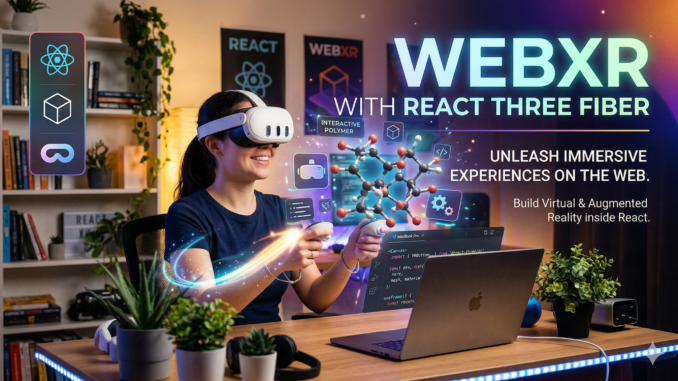
- What Is WebXR?
- Practical Use Cases
- React Concepts That Matter Here
- Three.js Primer
- React Three Fiber — Core Concepts
- Adding WebXR with @react-three/xr
- Enhancing Scenes with @react-three/drei
- Putting It All Together — The Shapes Scene
- Next Steps & Resources
1. What Is WebXR?
1.1 The XR Spectrum
| Term | What it means |
|---|---|
| VR (Virtual Reality) | Fully immersive — the real world is replaced by a virtual one |
| AR (Augmented Reality) | Virtual objects are overlaid on the real world |
| MR (Mixed Reality) | Virtual and real objects interact in the same space |
| XR (Extended Reality) | Umbrella term for VR + AR + MR |
1.2 The WebXR Device API
WebXR is a browser API (navigator.xr) that lets web pages:
- Detect XR-capable hardware (headsets, phones with AR support)
- Start immersive sessions (
immersive-vr,immersive-ar) - Access the headset’s 6-DoF pose (position + orientation) each frame
- Handle controller/hand input
- Render stereoscopic views (one per eye)
// Raw WebXR API — rarely used directly
const session = await navigator.xr.requestSession('immersive-vr', {
  requiredFeatures: ['local-floor'],
});
In practice you almost never call the raw API — libraries like React Three Fiber + @react-three/xr handle this for you.
1.3 Degrees of Freedom (DoF)
- 3-DoF — tracks rotation only (e.g., basic phone cardboard headsets)
- 6-DoF — tracks rotation AND position (e.g., Meta Quest, HTC Vive, Apple Vision Pro)
1.4 Session Types
| Session Type | Description |
|---|---|
inline |
Renders inside a regular <canvas> on the page (no headset needed) |
immersive-vr |
Full VR — headset takes over the display |
immersive-ar |
AR — camera feed + overlaid 3D content |
1.5 Reference Spaces
Reference spaces define the coordinate origin for XR tracking:
viewer— relative to the viewer’s head (always at 0,0,0)local— origin is where the user started the sessionlocal-floor— likelocalbut Y=0 is the floorbounded-floor— adds play-area boundary dataunbounded— for large-scale experiences (walking around a city)
3. React Concepts That Matter Here
React Three Fiber is a React renderer, so standard React knowledge transfers directly.
3.1 Component Model
Everything in a 3D scene becomes a React component. A scene is a tree — just like a UI.
function Scene() {
  return (
    <Canvas>
      <ambientLight />
      <mesh>
        <boxGeometry />
        <meshStandardMaterial color="hotpink" />
      </mesh>
    </Canvas>
  );
}
3.2 Props vs. State
- Props drive static geometry, colors, positions
- State drives dynamic or interactive changes
function GlowingBox() {
  const [hovered, setHovered] = useState(false);

  return (
    <mesh
      onPointerOver={() => setHovered(true)}
      onPointerOut={() => setHovered(false)}
    >
      <boxGeometry />
      <meshStandardMaterial color={hovered ? 'orange' : 'white'} />
    </mesh>
  );
}
3.3 useRef — Escaping the Render Cycle
Three.js objects (meshes, cameras, lights) are mutated every frame. useRef gives you a stable handle to the underlying Three.js object without triggering re-renders.
const meshRef = useRef();

// Mutate the object directly — no re-render cost
meshRef.current.rotation.y += 0.01;
3.4 useEffect — Setup and Cleanup
Use useEffect for one-time setup that depends on a ref being populated, e.g., configuring a physics body or subscribing to XR events.
useEffect(() => {
  // runs once the canvas is mounted
  console.log('Three.js scene ready');
  return () => console.log('cleanup');
}, []);
3.5 Custom Hooks
React Three Fiber hooks (useFrame, useThree) follow the same rules as standard hooks — they must be called at the top level of a component or another hook.
4. Three.js Primer
React Three Fiber is a thin declarative wrapper over Three.js. Understanding the underlying concepts makes debugging much easier.
4.1 The Scene Graph
Scene
├── PerspectiveCamera
├── AmbientLight
├── DirectionalLight
└── Mesh
    ├── BoxGeometry
    └── MeshStandardMaterial
Every object placed in the scene is a node in this tree. Parent transforms (position, rotation, scale) cascade to children.
4.2 Geometry
Defines the shape of an object (vertex positions, normals, UV coordinates).
// Three.js (raw)
const geometry = new THREE.BoxGeometry(1, 1, 1);

// React Three Fiber (declarative JSX)
<boxGeometry args={[1, 1, 1]} />
4.3 Materials
Defines the appearance of a surface.
| Material | Description |
|---|---|
MeshBasicMaterial |
No lighting — always same brightness |
MeshStandardMaterial |
PBR (physically-based) — responds to lights |
MeshPhysicalMaterial |
Extended PBR with clearcoat, subsurface scattering |
MeshNormalMaterial |
Colors faces by surface normal — great for debugging |
4.4 The Render Loop
Three.js calls requestAnimationFrame on every frame. React Three Fiber exposes this via useFrame.
useFrame((state, delta) => {
  // state.clock.elapsedTime — time since start
  // delta                   — seconds since last frame
  meshRef.current.rotation.y += delta;
});
5. React Three Fiber — Core Concepts
5.1 <Canvas>
The root component. It creates a Three.js WebGLRenderer, attaches it to the DOM, and starts the render loop.
import { Canvas } from '@react-three/fiber';

<Canvas
  camera={{ position: [0, 1.6, 5], fov: 60 }}
  style={{ width: '100vw', height: '100vh' }}
>
  {/* scene content */}
</Canvas>
Key props:
– camera — initial camera configuration
– shadows — enable shadow mapping
– gl — pass options to the WebGL renderer
5.2 JSX ↔ Three.js Mapping
React Three Fiber converts camelCase JSX tags to Three.js class names:
| JSX tag | Three.js class |
|---|---|
<mesh> |
THREE.Mesh |
<boxGeometry> |
THREE.BoxGeometry |
<meshStandardMaterial> |
THREE.MeshStandardMaterial |
<ambientLight> |
THREE.AmbientLight |
<group> |
THREE.Group |
args maps to constructor arguments:
<sphereGeometry args={[0.6, 32, 32]} />
// equivalent to: new THREE.SphereGeometry(0.6, 32, 32)
5.3 useFrame — The Animation Hook
import { useRef } from 'react';
import { useFrame } from '@react-three/fiber';

function SpinningCube() {
  const ref = useRef();

  useFrame((state, delta) => {
    ref.current.rotation.y += delta * 0.8;
  });

  return (
    <mesh ref={ref}>
      <boxGeometry args={[1, 1, 1]} />
      <meshStandardMaterial color="#e74c3c" />
    </mesh>
  );
}
5.4 useThree — Accessing the Core State
import { useThree } from '@react-three/fiber';

function SceneInspector() {
  const { camera, scene, gl, size } = useThree();

  useEffect(() => {
    console.log('Viewport:', size.width, size.height);
    console.log('Renderer:', gl.info.render);
  }, []);

  return null;
}
5.5 Event System
React Three Fiber adds a pointer event system to 3D objects:
<mesh
  onClick={(e) => console.log('clicked', e.object)}
  onPointerOver={(e) => (e.object.material.color.set('orange'))}
  onPointerOut={(e) => (e.object.material.color.set('white'))}
>
  <boxGeometry />
  <meshStandardMaterial />
</mesh>
5.6 Lighting Setup (Practical Defaults)
<>
  {/* Soft fill light everywhere */}
  <ambientLight intensity={0.4} />

  {/* Primary directional light (like the sun) */}
  <directionalLight
    position={[5, 10, 5]}
    intensity={1.2}
    castShadow
  />

  {/* Warm fill from below */}
  <pointLight position={[-4, -2, -4]} intensity={0.3} color="#ffbb77" />
</>
6. Adding WebXR with @react-three/xr
6.1 Installation
npm install @react-three/xr
6.2 The XR Store Pattern
createXRStore() manages the WebXR session lifecycle. It is created outside the component tree so the same session is shared across re-renders.
import { createXRStore, XR } from '@react-three/xr';

// Created once at module level
const store = createXRStore();

export default function App() {
  return (
    <>
      {/* Buttons live outside Canvas so they're 2D HTML overlays */}
      <button onClick={() => store.enterVR()}>Enter VR</button>
      <button onClick={() => store.enterAR()}>Enter AR</button>

      <Canvas>
        {/* XR wraps the scene — enables headset tracking, controller input, etc. */}
        <XR store={store}>
          <YourScene />
        </XR>
      </Canvas>
    </>
  );
}
6.3 What <XR> Does
- Injects a WebXR-compatible camera rig that follows headset pose
- Updates the render loop to use
XRSession.requestAnimationFrame - Provides a context that child components can read to detect XR state
- Handles the stereoscopic rendering (one pass per eye in VR)
6.4 Reading XR State
import { useXR } from '@react-three/xr';

function XRAwareObject() {
  const { isPresenting, session } = useXR();

  return (
    <mesh scale={isPresenting ? 1 : 0.5}>
      <boxGeometry />
      <meshStandardMaterial color={isPresenting ? 'lime' : 'white'} />
    </mesh>
  );
}
6.5 Controller Input
import { XRController, useXRControllerState } from '@react-three/xr';

function ControllerVisual() {
  return (
    <>
      <XRController hand="left" />
      <XRController hand="right" />
    </>
  );
}
6.6 Hand Tracking
import { XRHand } from '@react-three/xr';

function HandTracking() {
  return (
    <>
      <XRHand hand="left" />
      <XRHand hand="right" />
    </>
  );
}
6.7 AR Hit Testing (Placing Objects on Surfaces)
Hit testing lets you detect real-world surfaces via the device camera and place virtual objects on them.
import { createXRStore, XR } from '@react-three/xr';
import { useState, useRef } from 'react';

const store = createXRStore({ hitTest: true });

function ARPlacement() {
  const [placed, setPlaced] = useState(false);
  const [pos, setPos] = useState([0, 0, 0]);

  // useXRHitTest callback fires every frame with hit results
  useXRHitTest((results) => {
    if (results.length > 0 && !placed) {
      const matrix = results[0].getPose(referenceSpace).transform.matrix;
      setPos([matrix[12], matrix[13], matrix[14]]);
    }
  });

  return placed ? (
    <mesh position={pos}>
      <boxGeometry args={[0.2, 0.2, 0.2]} />
      <meshStandardMaterial color="hotpink" />
    </mesh>
  ) : (
    <ReticleMesh position={pos} onClick={() => setPlaced(true)} />
  );
}
7. Enhancing Scenes with @react-three/drei
@react-three/drei is a collection of ready-made helpers for React Three Fiber.
npm install @react-three/drei
7.1 <OrbitControls> — Mouse/Touch Camera Control
import { OrbitControls } from '@react-three/drei';

<Canvas>
  <XR store={store}>
    <YourScene />
    {/* OrbitControls are automatically disabled inside XR sessions */}
    <OrbitControls makeDefault />
  </XR>
</Canvas>
7.2 <Text> — 3D Text Labels
import { Text } from '@react-three/drei';

<Text
  position={[0, -1.2, 0]}
  fontSize={0.18}
  color="white"
  anchorX="center"
  anchorY="top"
>
  Hello WebXR!
</Text>
7.3 <Environment> — Image-Based Lighting
import { Environment } from '@react-three/drei';

<Environment preset="sunset" />
// Presets: sunset, dawn, night, warehouse, forest, apartment, studio, ...
7.4 <useGLTF> — Loading 3D Models
import { useGLTF } from '@react-three/drei';

function Model() {
  const { scene } = useGLTF('/models/robot.glb');
  return <primitive object={scene} />;
}
// Preload to avoid pop-in
useGLTF.preload('/models/robot.glb');
7.5 <Html> — 2D HTML Inside the 3D Scene
Useful for labels, tooltips, and UI panels anchored to 3D positions.
import { Html } from '@react-three/drei';

<mesh>
  <sphereGeometry args={[1, 32, 32]} />
  <meshStandardMaterial />
  <Html center>
    <div style={{ background: 'white', padding: 8, borderRadius: 4 }}>
      I am a 3D tooltip!
    </div>
  </Html>
</mesh>
8. Putting It All Together — The Shapes Scene
This playground already contains a working WebXR scene. Let’s walk through the architecture.
8.1 File Structure
src/
  App.jsx              ← Canvas, XR store, Enter VR/AR buttons
  components/
    ShapesScene.jsx    ← Geometry, lighting, animation
8.2 App.jsx Walkthrough
// 1. Create the XR store outside the component (singleton per session)
const store = createXRStore();

export default function App() {
  return (
    <>
      {/* 2. HTML overlay buttons — enterVR() / enterAR() trigger the WebXR API */}
      <button onClick={() => store.enterVR()}>Enter VR</button>
      <button onClick={() => store.enterAR()}>Enter AR</button>

      {/* 3. Canvas sets up the WebGL renderer */}
      <Canvas camera={{ position: [0, 1.6, 5], fov: 60 }}>

        {/* 4. <XR> injects WebXR support into everything below it */}
        <XR store={store}>
          <ShapesScene />
          {/* OrbitControls only active on desktop — headset takes over in XR */}
          <OrbitControls makeDefault />
        </XR>

      </Canvas>
    </>
  );
}
8.3 ShapesScene.jsx Walkthrough
// Shape wrapper: handles rotation animation + label
function Shape({ position, color, label, children }) {
  const groupRef = useRef();

  useFrame((_, delta) => {
    groupRef.current.rotation.y += delta * 0.5;
    groupRef.current.rotation.x += delta * 0.2;
  });

  return (
    <group position={position}>
      <group ref={groupRef}>
        <mesh castShadow receiveShadow>
          {children}  {/* geometry passed as children */}
          <meshStandardMaterial color={color} roughness={0.4} metalness={0.2} />
        </mesh>
      </group>
      <Text position={[0, -1.2, 0]} fontSize={0.18} color="white">
        {label}
      </Text>
    </group>
  );
}
Shapes are arranged in a circle using trigonometry:
const radius = 3.5;
const angle = (index / shapes.length) * Math.PI * 2;
const position = [
  Math.sin(angle) * radius,  // X
  1.5,                        // Y (eye level)
  Math.cos(angle) * radius,  // Z (−radius puts it in front)
];
8.4 Available Geometries Demo Table
| Shape | JSX Geometry Tag | Key Args |
|---|---|---|
| Box | <boxGeometry> |
[width, height, depth] |
| Sphere | <sphereGeometry> |
[radius, widthSegments, heightSegments] |
| Cylinder | <cylinderGeometry> |
[radiusTop, radiusBottom, height, segments] |
| Cone | <coneGeometry> |
[radius, height, segments] |
| Torus | <torusGeometry> |
[radius, tube, radialSeg, tubularSeg] |
| Torus Knot | <torusKnotGeometry> |
[radius, tube, tubularSeg, radialSeg] |
| Icosahedron | <icosahedronGeometry> |
[radius, detail] |
9. Next Steps & Resources
9.1 Suggested Exercises
- Add interactivity: Make shapes change color when clicked (
onClickevent) - Add a ground plane: Place a
<planeGeometry>at Y=0 to anchor the scene - Load a GLTF model: Use
useGLTFfrom drei to import a free model from Sketchfab or Poly Pizza - AR placement: Add a hit-test reticle so users can place an object on a real surface in AR mode
- Controller interactions: Add
<XRController>components and wire up button press events - Teleportation: Implement locomotion using
@react-three/xr‘s teleportation helpers - Physics: Integrate
@react-three/rapierto add gravity and collisions
9.2 Performance Tips
- Use
instancedMeshfor scenes with many repeated objects - Keep polygon counts low for mobile VR/AR (target ≤ 100k triangles total)
- Avoid creating new objects inside
useFrame— allocate outside and mutate - Use compressed textures (KTX2/Basis) for large texture atlases
- Profile with
stats.jsor Chrome DevTools’ WebXR emulator
9.3 Testing Without a Headset
- Chrome DevTools WebXR Emulator — built into DevTools → More Tools → WebXR
- Meta Quest Browser Link — stream from PC to Quest via USB
- Immersive Web Emulator — browser extension that simulates XR sessions
9.4 Key Libraries Summary
| Library | Purpose | Install |
|---|---|---|
@react-three/fiber |
React renderer for Three.js | npm i @react-three/fiber three |
@react-three/xr |
WebXR integration | npm i @react-three/xr |
@react-three/drei |
Useful helpers & abstractions | npm i @react-three/drei |
@react-three/rapier |
Physics engine | npm i @react-three/rapier |
@react-three/postprocessing |
Visual effects (bloom, SSAO) | npm i @react-three/postprocessing |
Leave a Reply